Automatic Video Editor - Drop Footage, Get a Finished Edit
Give it a folder of clips and a song. Onset Engine picks the shots, orders them, puts every cut on the beat and builds a draft of the whole song, ready to render or refine. It edits your footage; it doesn't generate any.
What an Automatic Video Editor Does
An automatic video editor makes the decisions you'd otherwise make by hand on a timeline: which clips to use, in what order, where each cut lands, and how the pace follows the music. Many "auto edit" tools only trim silences or split at scene changes. That saves time, but you still build the edit yourself.
Onset Engine makes four decisions for every edit:
- ✓ Which clips are worth using. It skips static, black and near-duplicate shots and keeps the mix varied.
- ✓ What order they go in. Shots flow and build instead of repeating.
- ✓ Where each cut lands. On the beat, so every cut feels intentional. See syncing video to music automatically.
- ✓ How the energy moves. Calm footage in the quiet parts, high-motion clips on the drops, like a music video editor would.
How It Decides Where to Cut
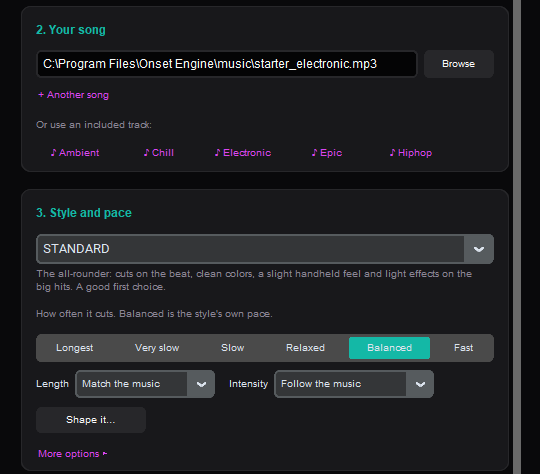
Press New video, pick your clips and a song, and it works from two kinds of analysis:
- ✓ Your footage: once per clip, visual AI records what's on screen (a sunset, a crowd, a car at speed), how much it moves and what kind of shot it is, so clips can be found and matched by what they show.
- ✓ Your song: AI beat detection finds every beat and the start of every bar, and maps how the energy rises and falls across the song, including where the drops are.
- ✓ Matching them: each cut goes on a beat, and each slot gets a clip whose energy fits that moment in the song.
- ✓ Keeping it varied: it checks how alike clips look, so near-identical shots don't play back to back.
The style you choose sets the look and how often it cuts, from Longest to Fast.

What's Still Up to You
- ✓ The footage and the song. It edits only the clips you give it. Nothing is generated, so every shot is yours.
- ✓ The style and pace. Pick one of 9 styles and how often it cuts. Optionally, describe in words what to show in the quiet parts and on the heavy drops.
- ✓ Taste. Watch the draft, then keep it, make another, or change the shots you don't like.
It's built for edits cut to music: montages, music videos, highlight reels, AMVs, car edits, gaming and event recaps. For talk-driven videos, like interviews, podcasts and tutorials, a transcript-based editor that cuts on what people say is the better tool.
The Automatic Editing Workflow
Add Your Clips
Pick video files or folders. Each clip is analyzed once and stays in your library, so later edits start faster.
Pick a Song
Your own track or one of the included ones. Its beats and energy are mapped automatically.
Choose a Style
STANDARD for clean cuts on the beat, a good first choice. AGGRESSIVE for hard-hitting, bass-heavy tracks. PRESTIGE for a polished film look. HYPNOSIS for ambient and trance.
Render or Refine
Render the draft as an MP4, change shots in the Editor, or on Studio open the edit as a timeline in Premiere Pro or DaVinci Resolve.
Auto Edit, Then Refine
Automatic doesn't mean take it or leave it. The draft is a starting point:
- ✓ Render it as it is if it's what you wanted.
- ✓ Make another from the same clips and song: it picks the clips again and makes a different edit.
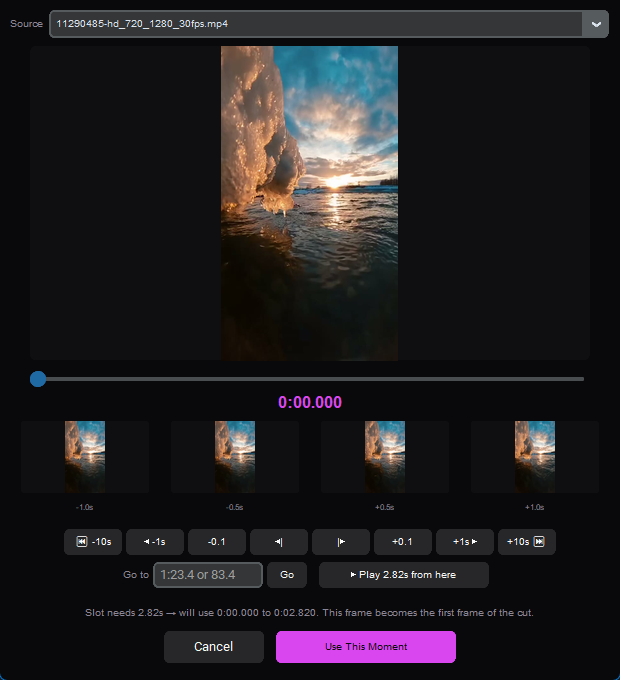
- ✓ Change single shots: swap a clip for a similar one, pick the exact moment it starts on, or lock the ones you love and re-roll the rest.
- ✓ Finish in your editor (Studio): open the edit as a timeline in Premiere Pro or DaVinci Resolve, with the song.
One-time purchase. Runs on your PC. Your footage is never uploaded, and there are no per-render fees.
Frequently Asked Questions
Is there an AI that automatically edits videos?
Yes. Onset Engine is an automatic video editor for edits cut to music. You give it your clips and a song; it analyzes what is on screen in each clip and maps the song's beats and energy, then picks the clips, puts every cut on the beat and matches calm shots to quiet parts and high-motion shots to the drops. The result is a draft of the whole song that you can render as it is or refine. It runs on your PC, and your footage is never uploaded.
Does Onset Engine generate video with AI?
No. It is an automatic editor, not a video generator. AI is used to understand your footage and your song, but every shot in the edit comes from the clips you give it. Nothing is generated or invented.
How long does an automatic edit take?
Most of the time goes into analyzing your clips, which happens once per clip: after that, they stay in your library and new edits start from them straight away. With a lot of footage (more than about 10 minutes), Onset Engine analyzes about 10 minutes of it first, spread across all of it, so the first draft arrives quickly, and you can analyze the rest later. Rendering the final video then depends on its length, resolution and your hardware.
Can AI edit my video for me?
For music-driven edits, yes. In Onset Engine, press New video, pick your videos and a song, choose a style and how often it cuts, and click Make my video. You get a draft of the whole song, cut to the beat and open in the Editor. Render it as it is, make another version, change single shots, or open it as a timeline in Premiere Pro or DaVinci Resolve (Studio).
What is the best free automatic video editor?
Onset Engine has a free Demo with every feature, on your own footage: New video, all 9 styles, clips matched to the music, describing what to show, changing single shots on the timeline, and every effect. Demo renders are the first minute of your edit, at 720p and 30 FPS with a watermark, and you can watch the whole edit in the app. Onset Studio is a one-time purchase of $79: it renders the whole edit with no watermark, in 1080p or 4K at up to 60 FPS, and opens it as a timeline in Premiere Pro or DaVinci Resolve.
Is there an automatic video editor with no watermark?
Onset Studio has no watermark: a one-time purchase of $79 that renders your whole edit in 1080p or 4K at up to 60 FPS, with no limit on how many videos you render. It also opens your edit as a timeline in Premiere Pro or DaVinci Resolve. Vertical videos, Highlights and Triptych are in every version, the free Demo included.
Ready to Try It?
Download the free demo and see the results on your own footage. One-time purchase, no subscriptions.